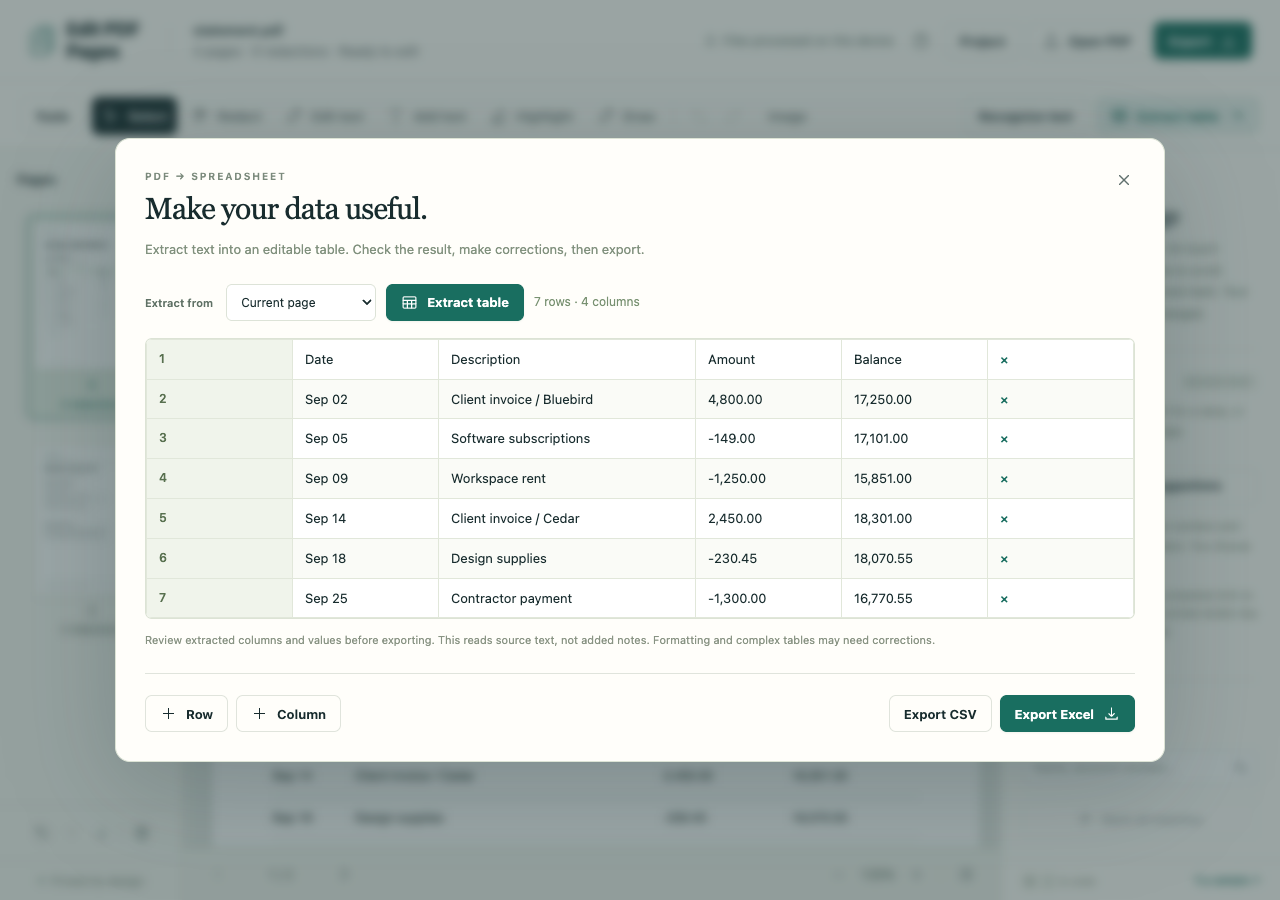
A payment in the wrong row is easy to overlook once a statement becomes a spreadsheet. Before sorting or calculating, compare each transaction with the PDF, including wrapped descriptions, minus signs and empty cells.
The fictional sample statement has six transactions to check. Its September 25 payment is -1,300.00, and the closing balance is 16,770.55. Those values give you useful checkpoints without using a real account record.
Get the first page into the table preview
Open the statement in the PDF workspace and select the transaction page. Choose Extract table, leave Extract from on Current page, then choose Extract table inside the dialog.
Identify the date, description, amount and balance columns before editing. Extraction follows text positions and may also pick up an account heading, summary or footer. Click a cell to correct it, use Row or Column to add space, and remove unwanted rows with their × buttons.
Work down the statement one transaction at a time
- Count transactions. This sample has six. A merchant description wrapped onto another line is still part of the same transaction. Repeated headings on a longer statement are not extra payments.
- Keep each date with its description and amount. Follow the source's date format. Do not add a missing year unless the statement establishes it.
- Inspect the signs and decimal points. Check the September 25 payment carefully. A lost minus sign changes its meaning even when every digit survives.
- Keep blanks distinct from zero. If a statement separates money in and money out, preserve those columns instead of guessing how an empty cell should be filled.
- Compare the balances. Check the closing 16,770.55 as well as the individual rows. One matching total cannot catch every misplaced transaction.
Different banks arrange their statements differently. A successful extraction of this sample does not establish that another layout will produce the same columns. If the preview misses substantial content, the invoice example shows what manual repair can involve.
Save the checked values
Choose Export Excel for XLSX or Export CSV for a plain table. Open the downloaded file in your spreadsheet app and inspect dates, identifiers and amount formats before sorting or adding formulas. The export contains cell values; it does not apply accounting rules.
For a scanned statement, run English OCR first and compare recognized digits and punctuation with the page. Pages containing redactions or replacement edits are excluded entirely from extraction, so the table cannot expose the concealed source values.