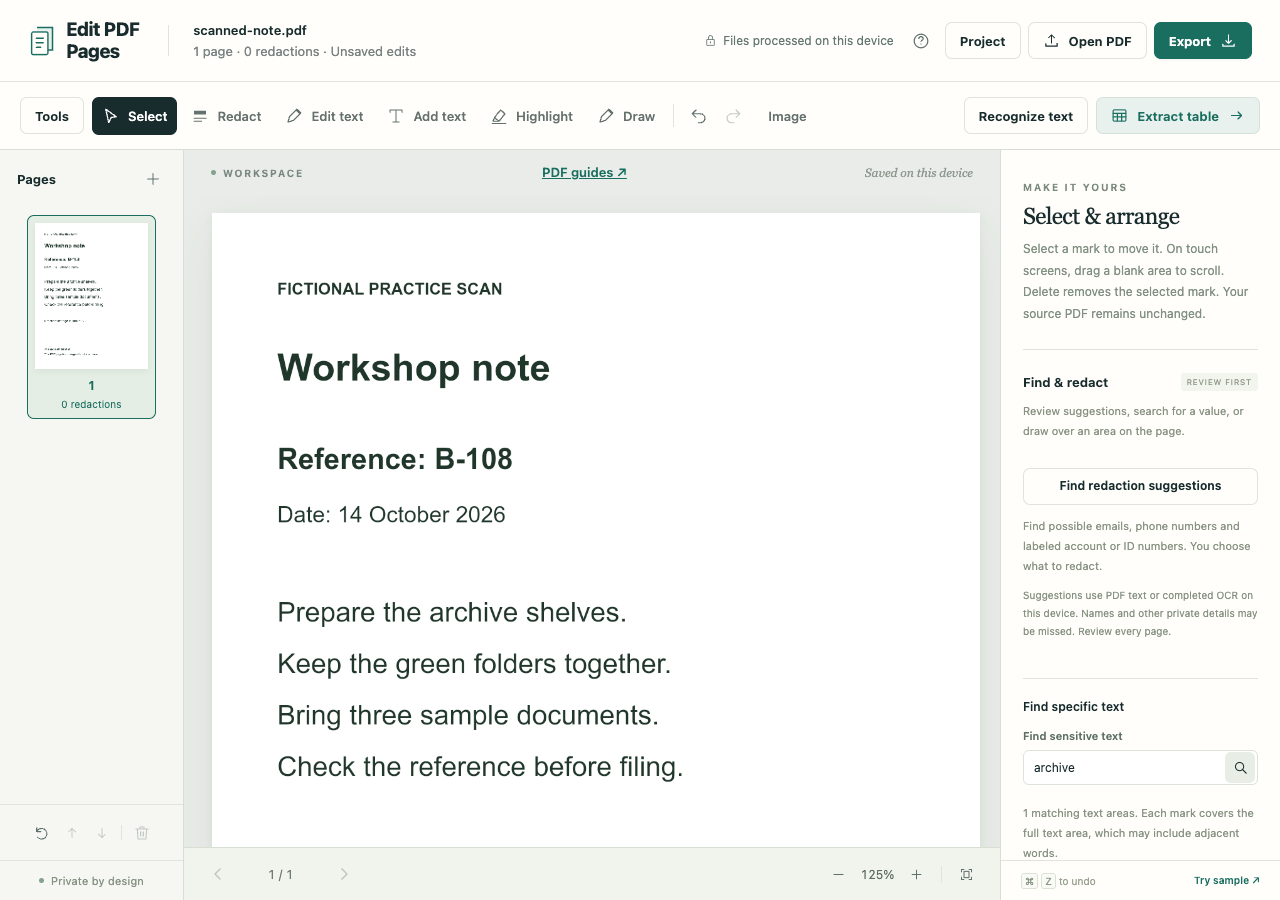
The word is visible on the page, but Find returns nothing. If the PDF is a scan, OCR can add a text layer that your viewer can search while leaving the original page image in place.
The fictional scanned note gives you two checks: the word archive and the reference B-108. Open it in the PDF workspace.
Run OCR on the note
- Choose Recognize text. Keep Pages set to Current page for this one-page example.
- Choose Recognize text inside the dialog. You can cancel a longer job; results from completed pages are kept.
- When Text is ready appears, choose Done.
- Select Redact to reveal the search controls. Search for archive under Find sensitive text, then try B-108. Searching does not apply redactions; leave Mark all matches untouched.
English is the bundled recognition language. Compare the matching text with the scan, particularly the letter and digits in the reference. Recognizing one ordinary word correctly does not tell you whether a short identifier was also read correctly.
Carry the search layer into the download
Choose Export and the PDF format, then select Preserve PDF structure. Leave Include recognized text as a searchable layer in preserved PDFs checked and choose Create PDF.
Open the downloaded PDF in a viewer and search for archive and B-108 again. Both were found in this example's checked export. The scan should look the same: OCR adds recognized text, so an incorrect result in the invisible layer would not correct or change the printed reference.
Troubleshoot a missing word
- The page was skipped. For longer files, All pages without selectable text skips pages that already contain text. Previously recognized pages are also skipped unless you enable Re-recognize pages even if they already contain text.
- The match is wrong. Compare the word with the image. A blur or similar-looking character can defeat recognition; another pass may return the same mistake.
- Search worked only in the workspace. Check the export mode and the searchable-layer checkbox. Redactions and replacements require sanitized image-only output, which removes the OCR layer.
If you need to change the visible wording, continue with editing a scanned PDF. OCR alone does not create a Word document or edit the scan. For a large searchable file, preserving compression is a separate step; its savings depend on the document.
Preserve export can retain hidden source data and is not sanitization. A .folio project keeps the original scan and OCR results for later work, so keep that editable backup separate from a redacted sharing copy.