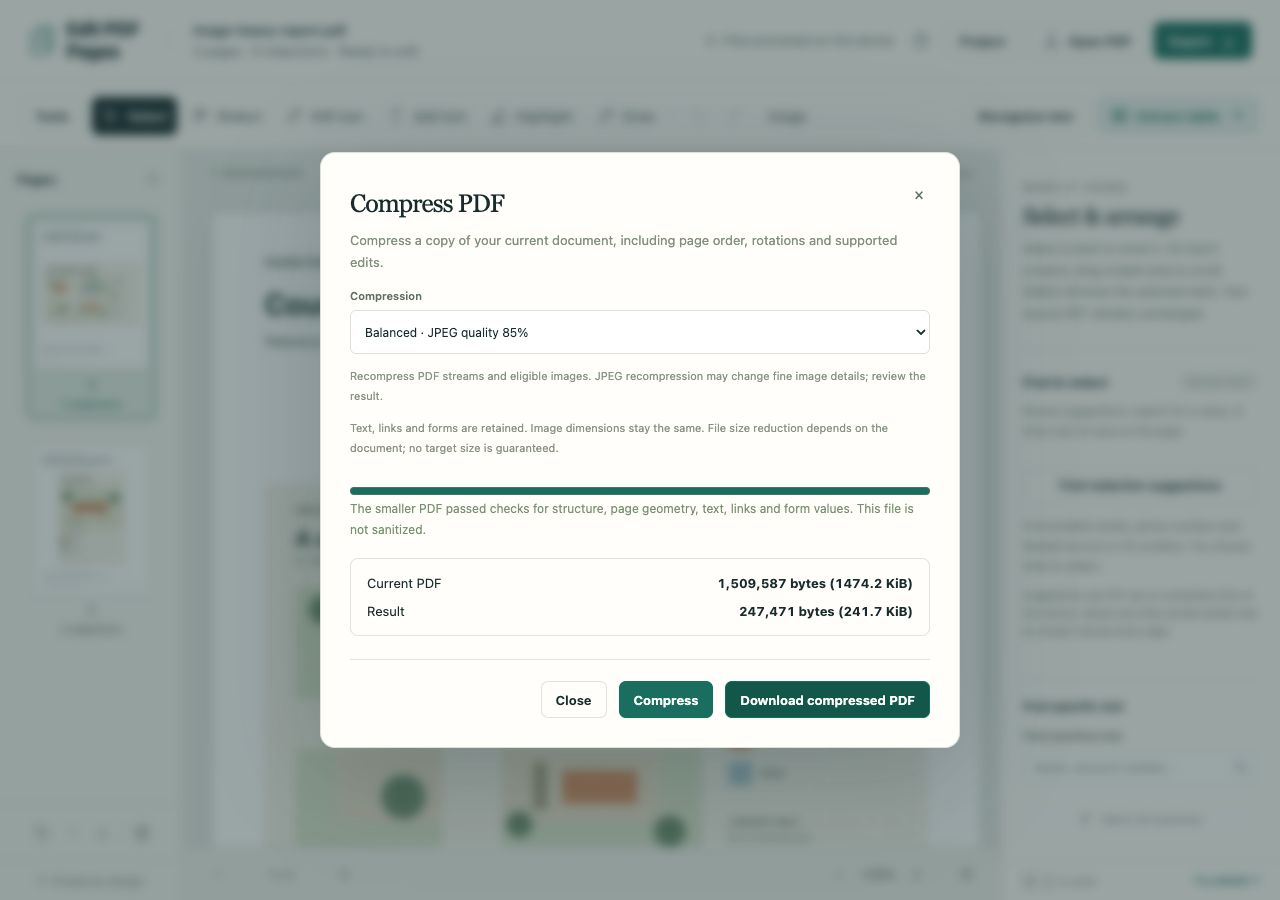
A photo report and a short text document can respond very differently to compression. Start with a setting that keeps image quality unchanged, then compare the actual result. For a document with large pictures, a second setting lets you trade some image detail for a smaller file.
Edit PDF Pages compresses a copy of the current workspace PDF on your device. The copy includes the current page order, rotations and supported edits. It can therefore differ from the original file you first opened, even before compression begins.
Try Lossless first
Open your PDF, choose Tools → Compress PDF, and leave Compression on Lossless. Choose Compress. Edit PDF Pages first builds the current PDF, then recompresses its streams without changing image quality.
The result shows Current PDF and Result sizes. These compare the copy made from your current workspace with the compression output. Use those figures when deciding whether the change is useful; an edited or assembled document may have a different size from the file on disk.
If the result is smaller, choose Download compressed PDF. If it does not shrink, the button reads Download unchanged current PDF. That download is the current workspace PDF with no compression saving, so you can keep it without substituting a larger result.
Compare Balanced on the same document
- Run Lossless and note the sizes shown. Download the result available for that setting.
- Change Compression to Balanced · JPEG quality 85% and choose Compress again.
- Read the new sizes, then download the result. Changing the setting clears the previous result, so wait for this run to finish before downloading.
- Open both copies beside the original. Compare fine image detail, labels, small text and page boundaries at a readable zoom.
Balanced recompresses eligible images as JPEG at quality 85 while keeping their pixel dimensions. It does not downsample the pages or turn the whole PDF into pictures. The quality number controls JPEG encoding; it does not predict a percentage reduction in file size.
Choose the version whose appearance and size suit the job. A smaller copy is less useful if a faint line, small label or important photographic detail becomes difficult to read. Some images are already efficiently compressed or are not eligible for this setting, so savings vary.
When the result is still too large
Edit PDF Pages has no “compress to 1 MB” setting or target-size guarantee. If a form or email service imposes a limit, compare the downloaded file with that limit before sending it. Run a setting on the current workspace once and inspect the result rather than assuming another pass will keep producing savings.
If the recipient needs only part of the document, extract the relevant pages into a separate PDF. Keep the context needed to understand them. Splitting can also create several files when the recipient accepts a packet, though their total size need not be smaller.
Keep privacy checks separate from file size
Compression retains the text, links and supported forms in the current preserved PDF. A workspace combining multiple interactive form documents must be exported separately. Edit PDF Pages checks page geometry, text, links and form values before offering the result. Those checks do not inspect every visual detail, so review the download. Original metadata and hidden source content may remain.
Redactions or replacement edits make preservation compression unavailable. The dialog offers Open sanitized export because those changes need a fresh image-only PDF. Follow the redaction guide to review visible coverage and make the sharing copy; a compression setting cannot perform that review.