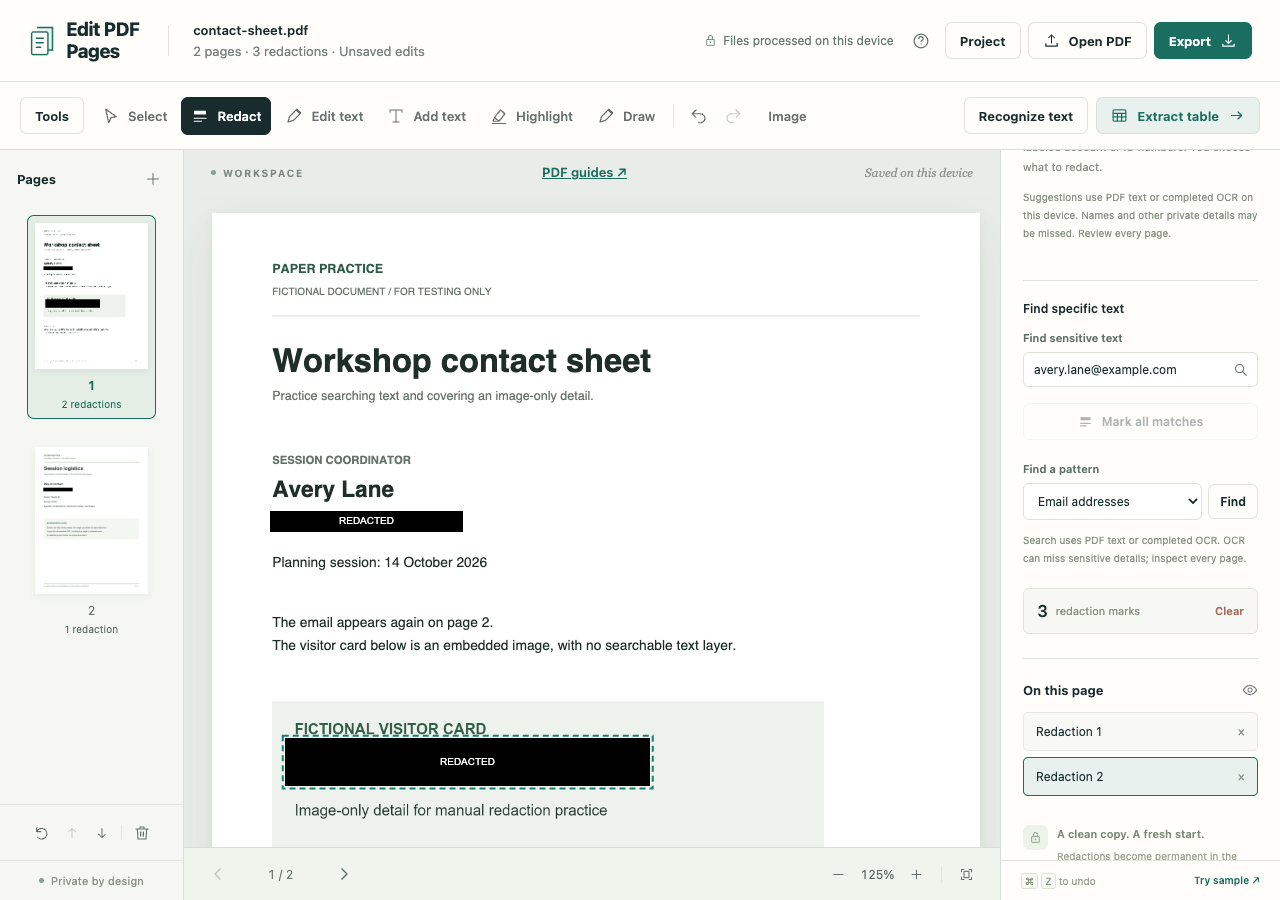
The email on the first page is easy to spot. Its second appearance and the visitor badge saved as an image take another look. This example needs three redaction marks before it is ready to export.
Download the fictional contact sheet and open it in the PDF workspace. Edit PDF Pages will create a fresh image-only PDF for the sharing copy. Keep the original file available while you work.
Find both email occurrences
- Select Redact. Enter avery.lane@example.com in Find sensitive text, then use the search button.
- Read both matching text areas. A match can include adjacent words, so check the full area before choosing Mark all matches.
- Visit the other page and inspect its mark too. Search results can be on pages you have not yet viewed.
For a document with several addresses, Find a pattern → Email addresses → Find can help. Search reads existing PDF text or completed OCR. It can miss fragmented words, recognition errors and details inside images.
Cover the badge that search cannot read
Return to page 1. The visitor badge is an image, so drag a redaction over its private detail, including the outer edges of the letters and numbers. The example now has three black marks: two for the email and one for the badge.
Inspect every page for anything else that needs covering, including headers and footers. A search returning No matches only tells you that it found nothing.
Use suggestions when they help
Entering Redact also checks available text for possible emails, phone numbers and labeled account or ID numbers. Gold highlights are suggestions; nothing is selected automatically. Click or tap the areas you want, then choose Redact selected above the page to apply the checked areas.
The Show filter narrows the visible categories. Selections stay checked across filters, and Redact selected applies all of them. Apply or clear pending selections before exporting. Each mark covers its full source text area, which can include neighboring words.
Thumbnail counts help you navigate, but a zero count does not establish that a page is safe. Scans need Recognize text before text-based suggestions can help. You still need to inspect the images and mark missed details yourself.
Make and inspect the sharing copy
Choose Export, set the format to PDF and leave Pages on All pages for this example. Redactions force Sanitized image-only PDF. Choose the page image quality, then Create PDF.
This rebuilds the exported pages without copying source PDF objects or OCR layers. Selectable text, interactive forms and links are lost. A black shape placed over original PDF content would not, by itself, establish removal; the separate sanitized export is essential.
Open the download and inspect the edges of all three marks at a readable zoom. Check that surrounding information remains legible and look over the rest of each page. Searching for the email is only an extra check: an image-only PDF returns no text matches even for visible details you missed. The structural checks likewise cannot decide whether you marked every private detail.