A colleague needs the report, while someone else needs only the schedule. You can create those two files from one PDF without deleting pages from your working document. The key choice is whether your selection should become one PDF or several.
Choose the kind of split you need
Open a PDF in the workspace, then choose Tools → Split / extract. The Operation menu offers three ways to organize the download.
| Operation | What it creates | Example |
|---|---|---|
| Selected pages into one PDF | One file containing the selected pages. | 1, 3 keeps pages 1 and 3 together and leaves page 2 out. |
| Separate PDFs for each range | A separate file for each comma-separated entry. | 1–2, 3 creates a two-page report and a one-page appendix. |
| Split every N pages | Consecutive groups of the chosen size. | Choose 1 under Pages per PDF to make one PDF per page. |
One result downloads as a PDF. Multiple results arrive together in a ZIP, with numbered filenames to keep their order. If the page count is not divisible by the group size, the final PDF contains the remaining pages.
Separate a report from its appendix
For a short practice packet, download the fictional project report and schedule appendix. The report has two pages; the appendix has one.
- Open the report. Use the + button beside Pages, labeled Add PDF, JPG or PNG pages, to append the schedule PDF.
- Read the three thumbnails in order: Overview, Findings, then Schedule appendix. Leave that order unchanged for this exercise.
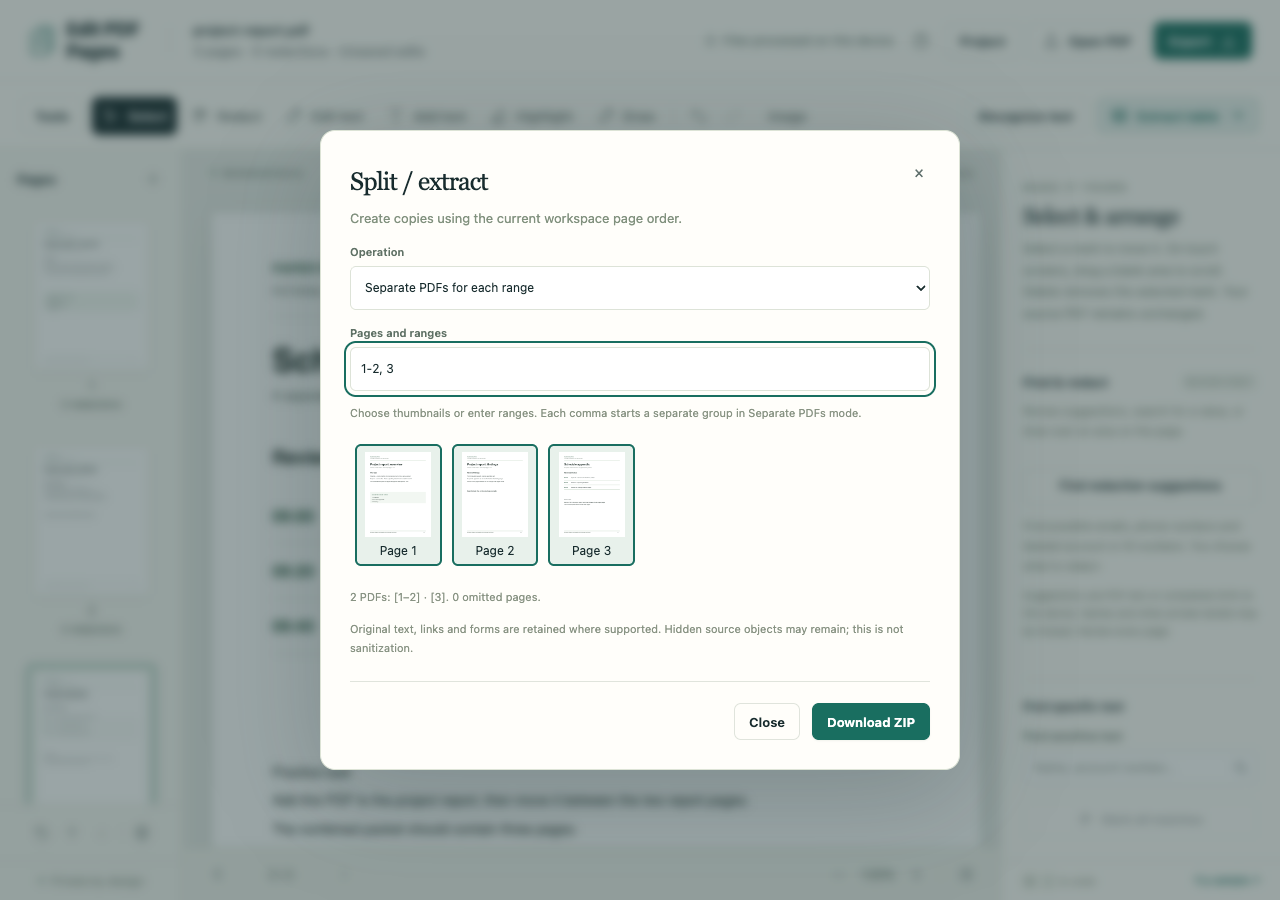
- Choose Tools → Split / extract. Set Operation to Separate PDFs for each range and enter 1–2, 3 in Pages and ranges.
- Check the plan beneath the thumbnails. It should show two PDFs, grouped as [1–2] and [3], with zero omitted pages. Choose Download ZIP.
- Unzip the download and open both PDFs. Check that the first contains Overview and Findings, and that the second contains only Schedule appendix.
The workspace still contains all three pages. Splitting creates copies, so you can make another selection without rebuilding the packet. To extract only the schedule next time, choose Selected pages into one PDF, enter 3, and use Download PDF.
Read the current page numbers
Ranges refer to positions in the workspace. After moving a page, use its new position even if a different number is printed inside the document. Edit PDF Pages does not rewrite printed page numbers or the report's contents list when you split it.
Enter ranges from low to high without overlapping or repeating a page. Typing the numbers in a different order does not reorder the output; move the pages in the workspace first if you need a new sequence. The page assembly guide covers that step.
Check what the smaller packet retains
Ordinary splitting preserves PDF content where supported, including selectable text. Hidden source objects can remain, so omitting a page is not a way to sanitize private data. Any redaction or replacement edit anywhere in the workspace makes the split PDFs use sanitized image-only output, even if that edited page is outside your selection.
For a confidential packet, review all retained pages and follow the redaction guide. If you simply want fewer visible pages in the working document itself, use Delete current page instead.