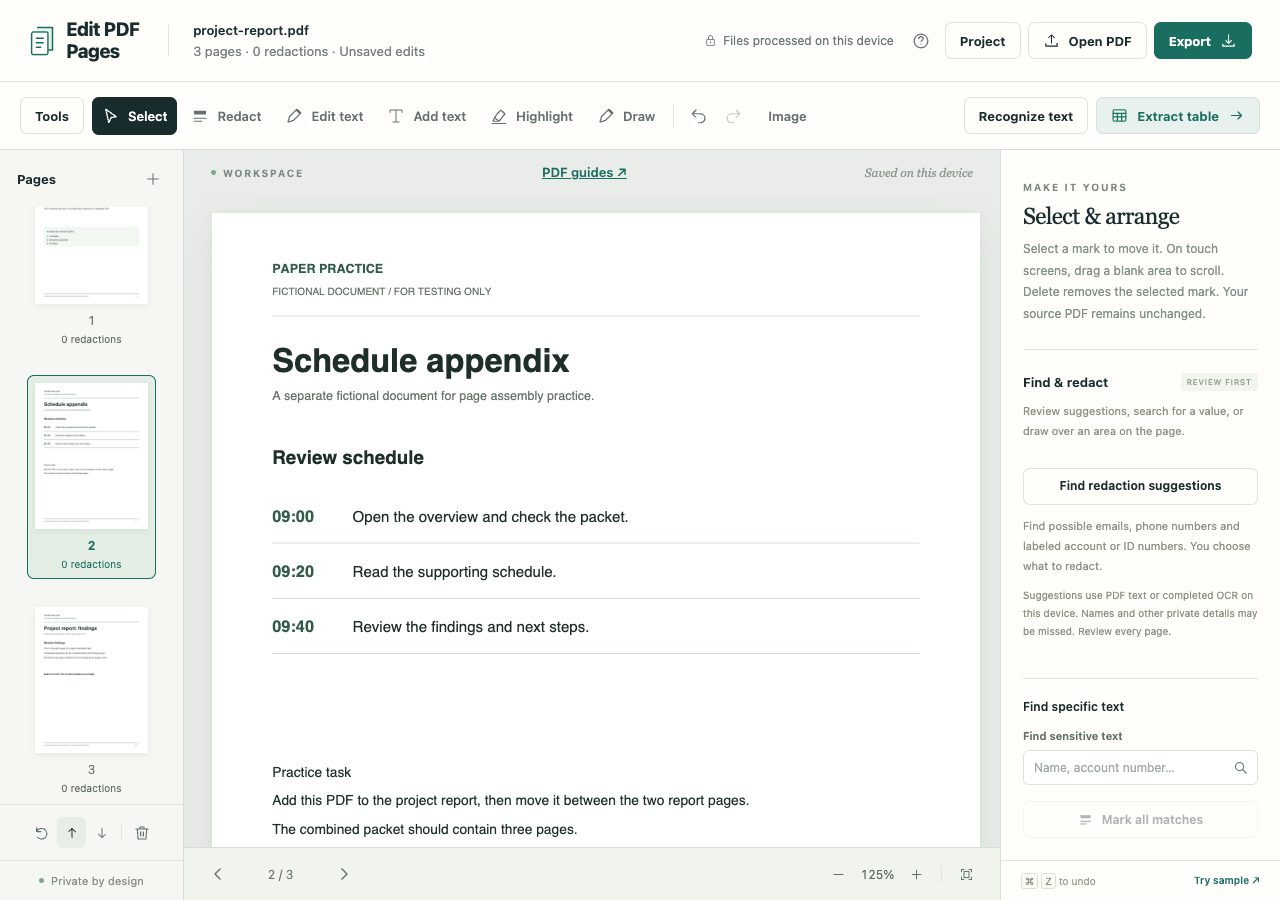
The appendix belongs between the overview and the findings, even though it is in a separate PDF. Add it to the report, move it into position and export the assembled packet.
Download the fictional project report and appendix. The finished order for this example is Overview → Schedule appendix → Findings.
Build the three-page packet
- In the PDF workspace, choose Open a PDF and select the report.
- Use Pages +, whose label is Add PDF, JPG or PNG pages, and select the appendix. Its page is added at the end.
- Select the appendix thumbnail and choose Move page earlier once. Read the headings in the large preview to confirm the order.
- If another document has a sideways page, select it and use Rotate page before exporting.
Pages + extends the open document. Open PDF starts a different document and can replace the workspace after confirmation. You can also add JPG or PNG pages to a packet; image files have layout and ordering controls before import.
Moving pages does not change numbers printed inside them. Check references such as “see page 3,” contents lists and appendix labels separately.
Export and check the order
Choose Export, the PDF format and All pages. Set Output mode to Preserve PDF structure, then choose Create PDF. Ordinary text and vector graphics are retained.
Open the download and read its three headings in order: Overview, Schedule appendix, Findings. Select or search a sentence from each source. Follow any important links and inspect unusual layouts before sending the packet.
When preservation is unavailable or unsuitable
Edit PDF Pages cannot merge multiple interactive-form PDFs while preserving all their forms. It reports that limitation. Sanitized image-only export keeps their visible appearance, but the fields will no longer be fillable.
A redaction or replacement anywhere in the workspace forces sanitized PDF output. The exported pages become images, losing selectable text, searchable OCR, interactive forms and links. Preserve mode, meanwhile, can retain metadata and hidden source objects; it is not sanitization. Editing can also invalidate existing digital signatures.
The workspace accepts up to 200 pages, with a 60 MB limit per PDF and 120 MB across sources. Save a .folio project if you need to rearrange the packet later; it retains the source documents. For a reader who needs only part of the packet, extract a separate copy without deleting pages from your workspace.