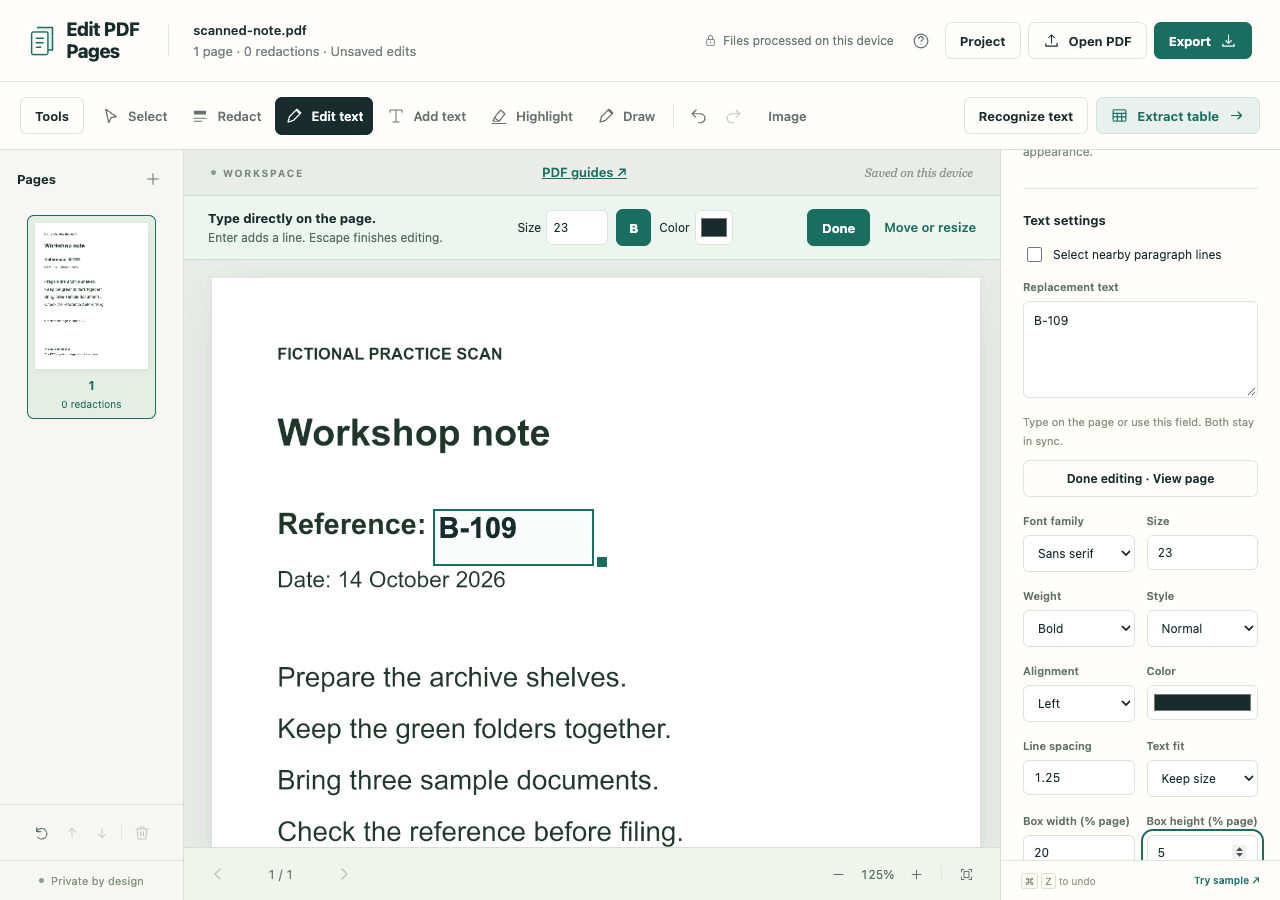
This scanned note needs a corrected reference. OCR finds B-108 so you can select it; the text editor then places B-109 over the old wording. Recognition and replacement are two separate steps.
Use the fictional scanned note in the PDF workspace. The visible correction requires sanitized image-only export. If you only need to find words in the unchanged scan, use the searchable-PDF guide.
Recognize and select the reference
- Choose Recognize text, leave Pages on Current page, and choose Recognize text inside the dialog.
- When Text is ready appears, choose Edit recognized text.
- Click or tap B-108. Compare the selected wording with the image, then type B-109 directly on the page. The sidebar's Replacement text stays synchronized.
Leave Select nearby paragraph lines off for this small change. English OCR can confuse similar letters and digits, so the selected text needs checking even when it looks plausible. If a word was missed, try another recognized area or deliberately re-run OCR; a poor scan may return the same mistake.
Give the correction enough room
The checked example used these settings:
| Setting | Value for this note |
|---|---|
| Text | B-109 |
| Font | Sans-serif, 23 pt, bold |
| Box width (% page) | 20 |
| Box height (% page) | 5 |
These dimensions give the replacement room at that font size. They are a starting point for this note, not settings to apply to every scan. Exact font recovery from the image is unavailable; compare the result with the surrounding line.
New replacements start with Auto-expand box. Entering dimensions or dragging the lower-right corner switches to Keep size. If the text overflows, enlarge the box, return to Auto-expand box or choose Shrink to fit under Text fit. Export remains blocked until it fits.
Check nearby words and borders after resizing. Surrounding content stays in place, and a larger box can overlap it. Choose Done above the page when you are ready to review.
Check the exported B-109
Choose Export and the PDF format. The mode is Sanitized image-only PDF. Select a page image quality and choose Create PDF.
The exported pages are rebuilt without source PDF objects or OCR layers. The corrected copy therefore loses searchable text, interactive forms and links. Reopen it and inspect B-109 at normal reading size, then zoom in on the edges of the correction and the covered old reference.
Keep a .folio project only as an editable backup: it contains the original scan and OCR results. If the finished page is needed as an image instead, export the edited page as PNG.