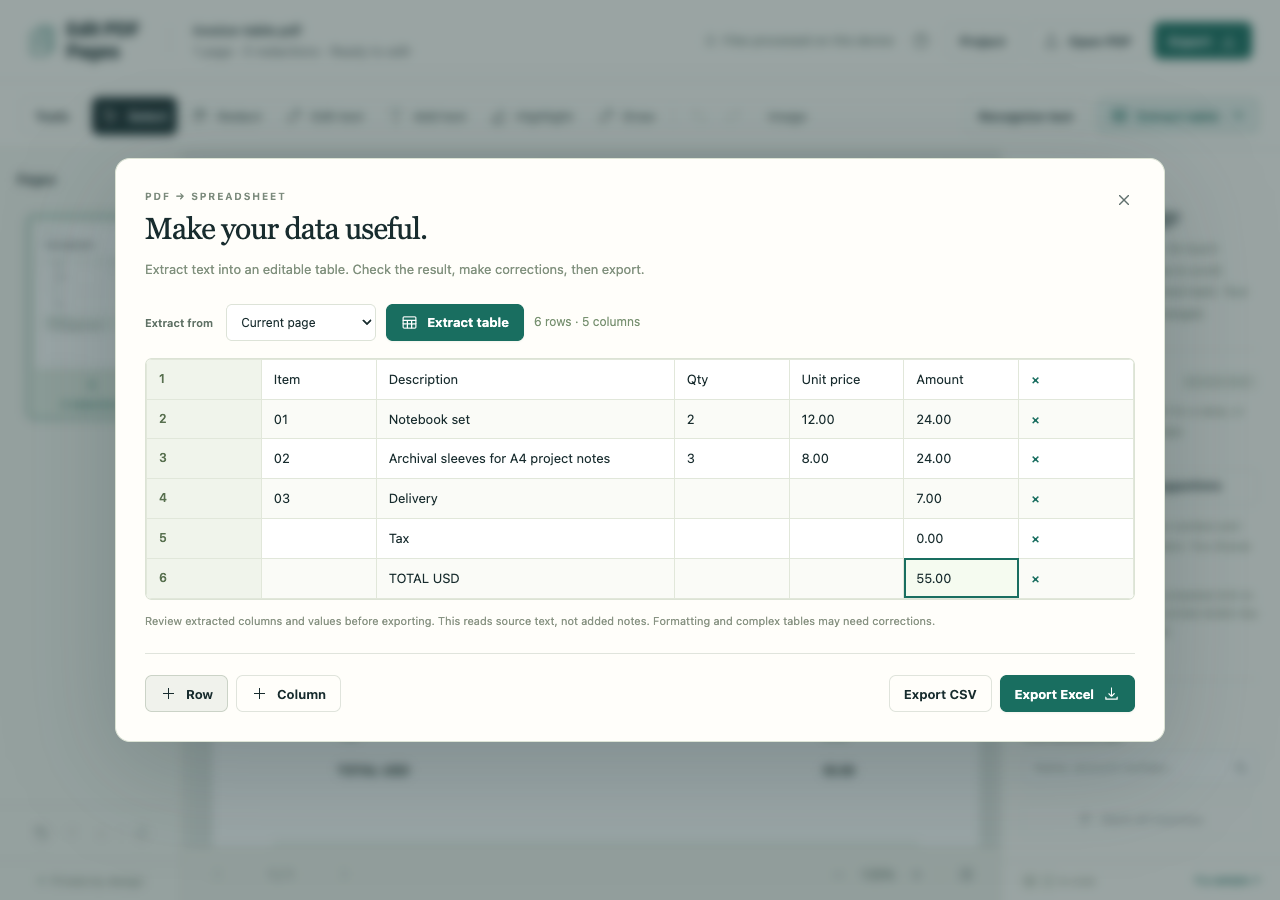
This invoice appears to be an easy conversion: three items, five columns and a total of 55.00. The extractor finds the total but misses every item. Here is how to catch that incomplete result and repair this small table before downloading it.
Open the fictional invoice in the PDF workspace. Choose Extract table, leave Extract from on Current page, then choose Extract table inside the dialog.
What the first extraction returned
The preview contains four rows and two columns: Subtotal, Tax, TOTAL USD and a footer. The extractor selected the totals block instead of the item table. Exporting now would save those four rows, without the three invoice items.
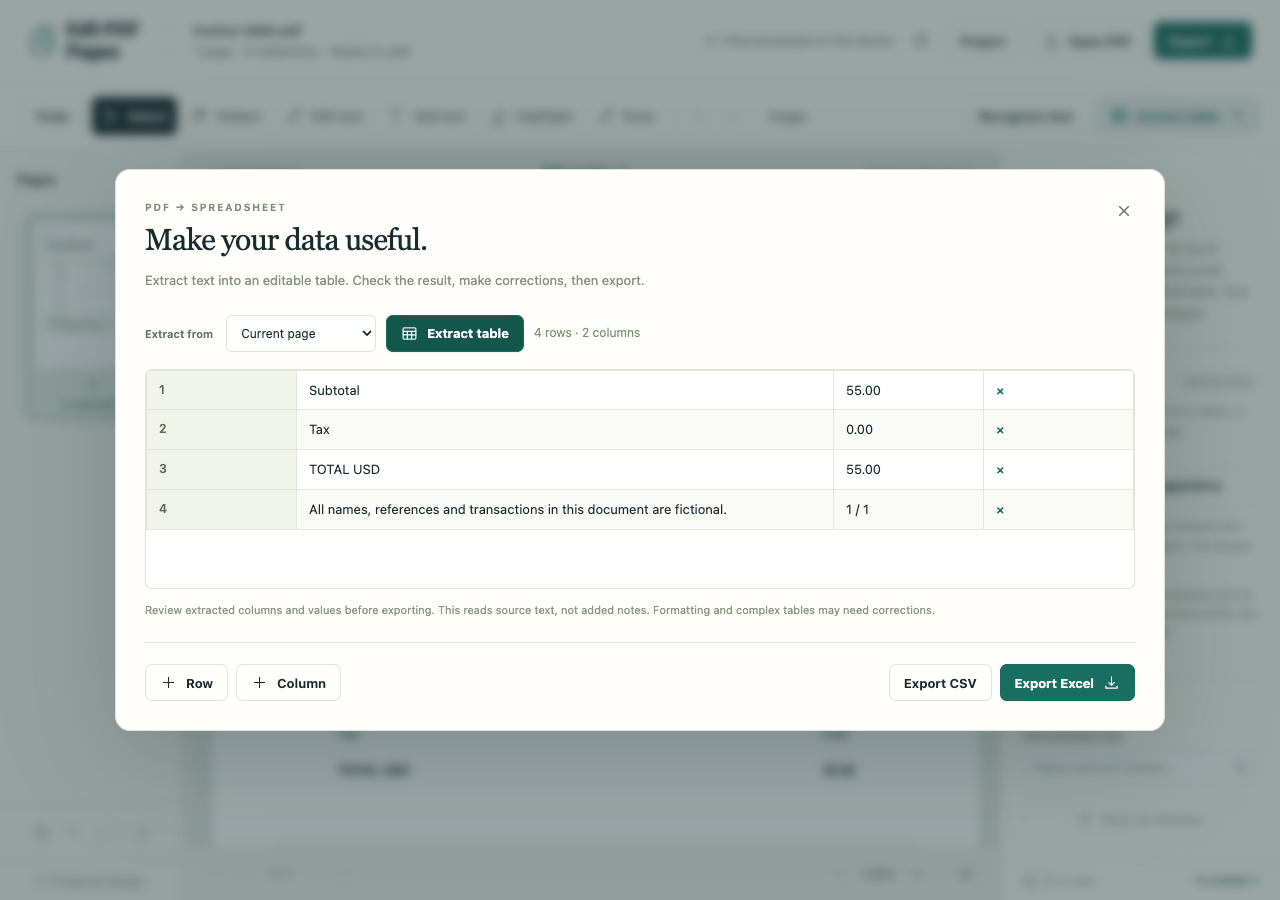
For this short invoice, entering the missing rows is manageable. On a long invoice, the same result could mean substantial transcription. Inspect the preview before deciding whether extraction will save you work.
Rebuild the six rows
- Remove the footer with the × button at the end of its row.
- Use Column three times to make five columns.
- Use Row three times to make six rows.
- Click the cells and replace their contents with the values below. Include the headings as the first row; leave delivery quantity and unit price blank.
| Item | Description | Qty | Unit price | Amount |
|---|---|---|---|---|
| 01 | Notebook set | 2 | 12.00 | 24.00 |
| 02 | Archival sleeves for A4 project notes | 3 | 8.00 | 24.00 |
| 03 | Delivery | 7.00 | ||
| Tax | 0.00 | |||
| TOTAL USD | 55.00 |
Check the description, blanks and total
The two printed lines of Archival sleeves for A4 project notes belong in one cell. Keep the empty delivery cells empty; a blank quantity does not mean zero. Then compare each amount and the 55.00 total with the invoice. A matching total cannot tell you whether an amount ended up beside the right description.
These checks apply to other tables too. Extraction follows text positions, so wrapped descriptions can become extra rows and blank cells can shift neighboring values into the wrong column.
Save the repaired table
Choose Export Excel for XLSX or Export CSV for a plain table. Open the result in your spreadsheet app and check the columns and values before sorting or adding formulas. Edit PDF Pages edits cell values; it does not calculate spreadsheet formulas.
If no readable text is found, run English OCR first and compare recognized numbers with the image. Pages with redactions or replacement edits are excluded entirely from extraction, so concealed source values do not pass into the sheet. Added notes are not source table data either.