Editing
Add text to a PDF
Add a reference, note or label where your PDF has room. Position a text box and check how it fits before exporting.
or drop a PDF here
One PDF · up to 60 MB and 200 pages
Files stay on this device. No account required.
How to use this tool
Add text to a PDF in three steps
Place a text box
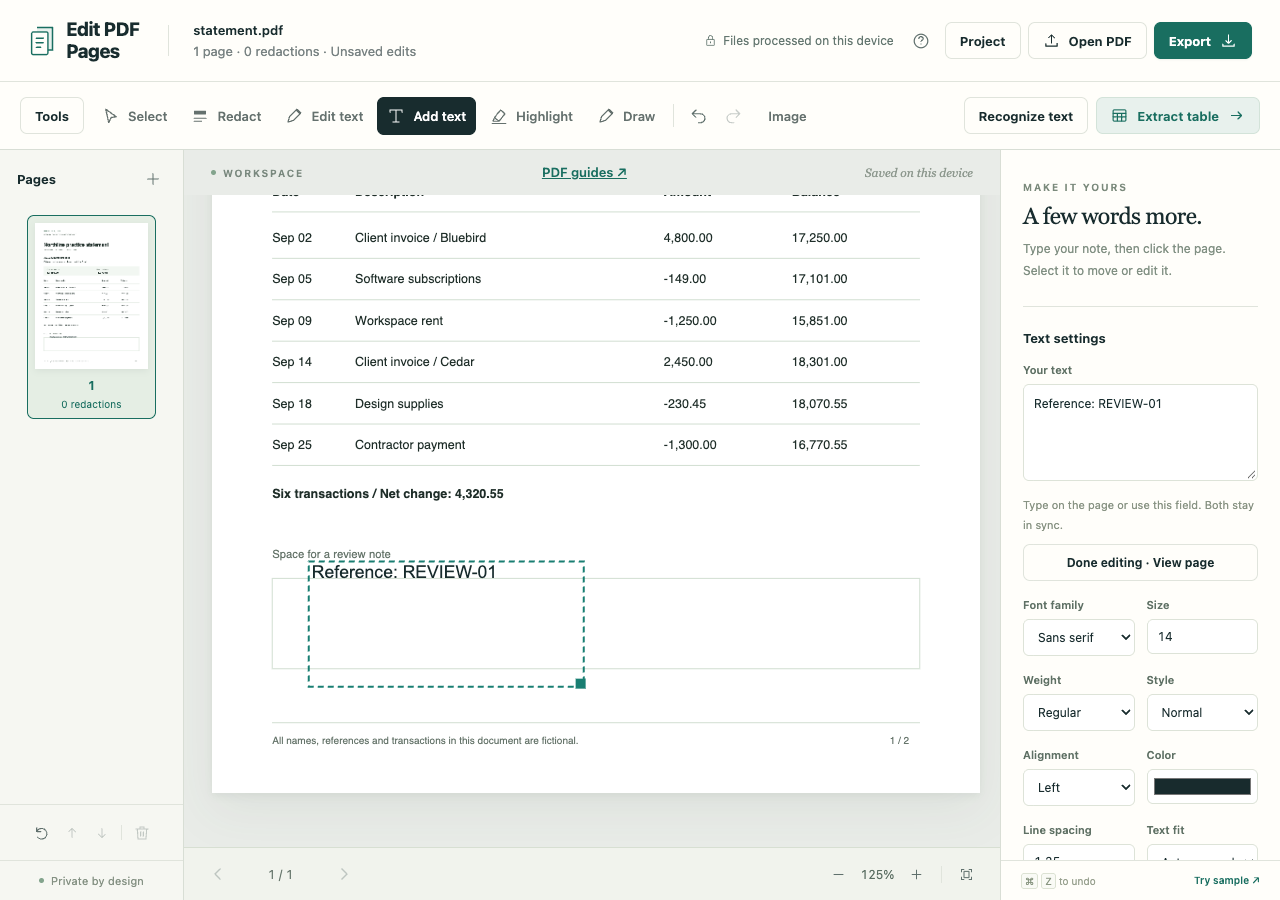
Open the PDF and use Add text on the page. Type your note, reference or label.
Adjust its appearance
Change the font size, weight, color and alignment. Move or resize the box and check for overlaps with the existing page.
Export and inspect
Choose preserved PDF export to keep supported added text selectable. Reopen the download and check the wording and placement.
What to check before you share
- Adding text does not replace existing words or create an interactive form field.
- The surrounding PDF content does not move to make room. Overflow blocks export; visible overlaps still need your review.
- Preserved added text has font/character limits. Unsupported characters are rejected explicitly; sanitized export can use browser-rendered text but loses selectable text.