Pages
Reorder, rotate and delete PDF pages
Put the pages in the order you need. Rotate sideways pages and remove extras while keeping the remaining pages together.
or drop a PDF here
One PDF · up to 60 MB and 200 pages
Files stay on this device. No account required.
How to use this tool
Reorder, rotate and delete PDF pages in three steps
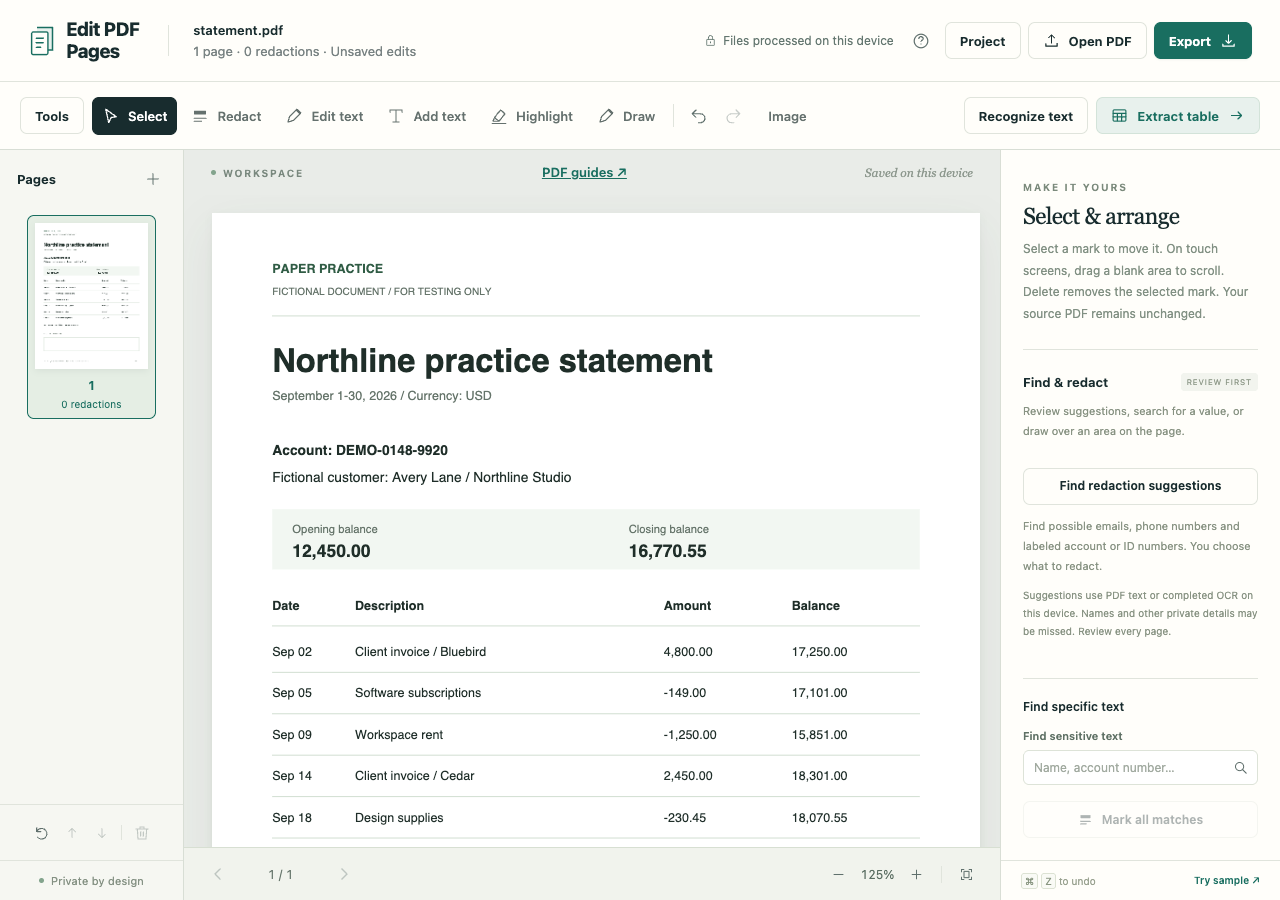
Inspect the thumbnails
Open your PDF and select a page from the page list. The viewer shows the selected page at a readable size.
Make the page changes
Move the page earlier or later, rotate it clockwise or use Delete current page. Undo is available while you work.
Check the exported copy
Export a PDF and reopen it. Check orientation, page order and the first and last pages of the finished document.
What to check before you share
- Deleting a visible page does not guarantee that its source data is removed from a preserved PDF.
- Use reviewed redactions and sanitized export when sensitive information must be removed from the sharing copy.
- Pages + can add more files; use Split / extract when you want separate copies without changing this workspace.