Editing
Redact a PDF on your device
Mark the details you need to remove, then make a separate PDF for sharing. Search and suggestions can help you find text; you decide what to cover.
or drop a PDF here
One PDF · up to 60 MB and 200 pages
Files stay on this device. No account required.
How to use this tool
Redact a PDF on your device in three steps
Find the details
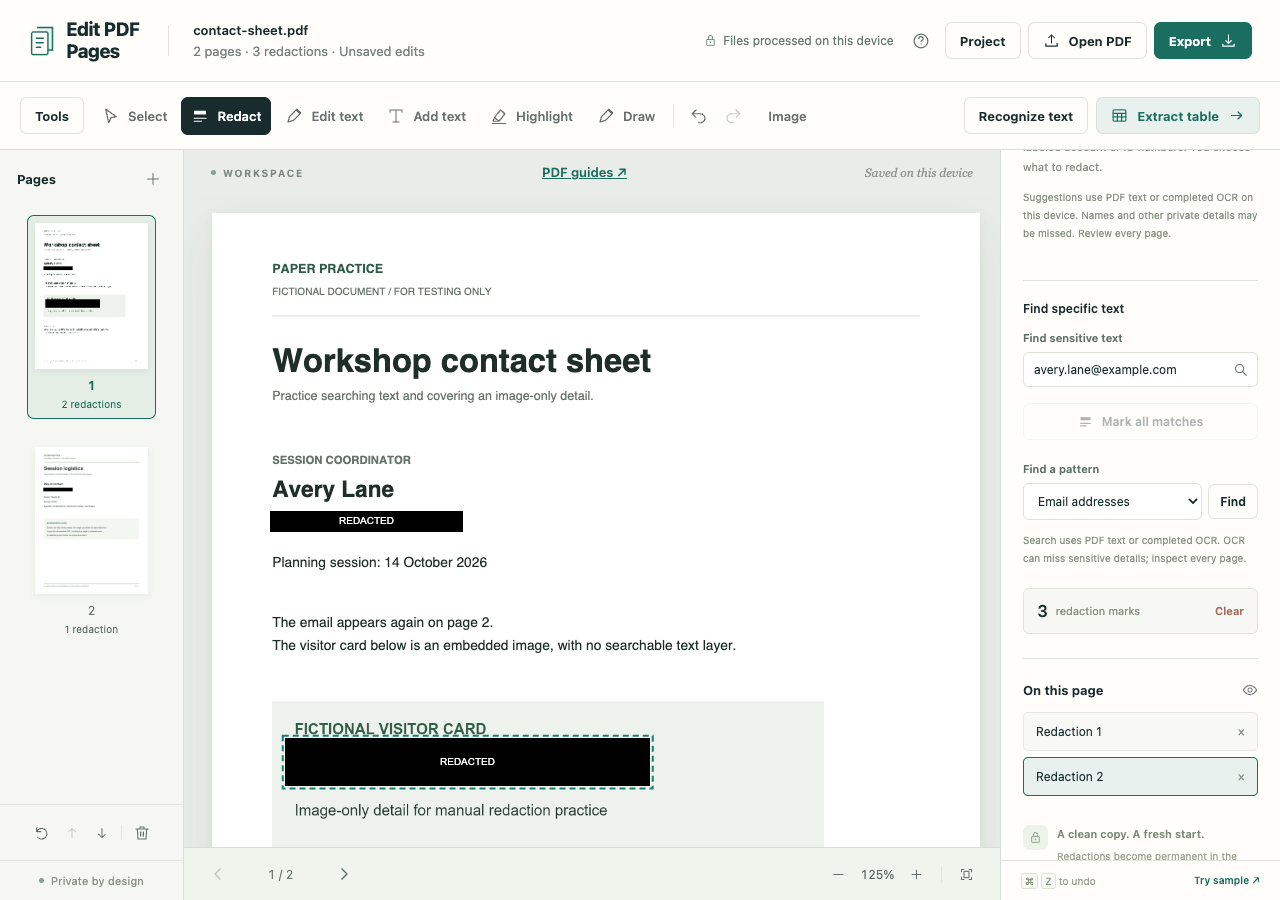
Open a PDF and review the Redact suggestions. Search for repeated text or draw a mark over an area yourself. For a scan, Recognize text can help with English words.
Check every page
Apply the suggestions you want, clear the rest and inspect the visible coverage. Text search can miss fragmented words and details inside images.
Export the sharing copy
Choose Export and create the sanitized PDF. Open the download and review it again before sharing.
What to check before you share
- Redaction export rebuilds pages as images. The sharing copy does not retain selectable text, links or interactive forms.
- Suggestions are approximate and do not establish that every sensitive detail is covered.
- Drafts and .folio projects keep unredacted originals. They are editable backups, not redacted sharing files.