Scans and tables
Edit text on a scanned PDF
A scan starts as a picture of the page. Recognize its English words, select the part you want to correct and inspect the replacement.
or drop a PDF here
One PDF · up to 60 MB and 200 pages
Files stay on this device. No account required.
How to use this tool
Edit text on a scanned PDF in three steps
Recognize the scan
Open the PDF and run Recognize text on the pages you need. Review the recognized words, especially names and numbers.
Edit the recognized text
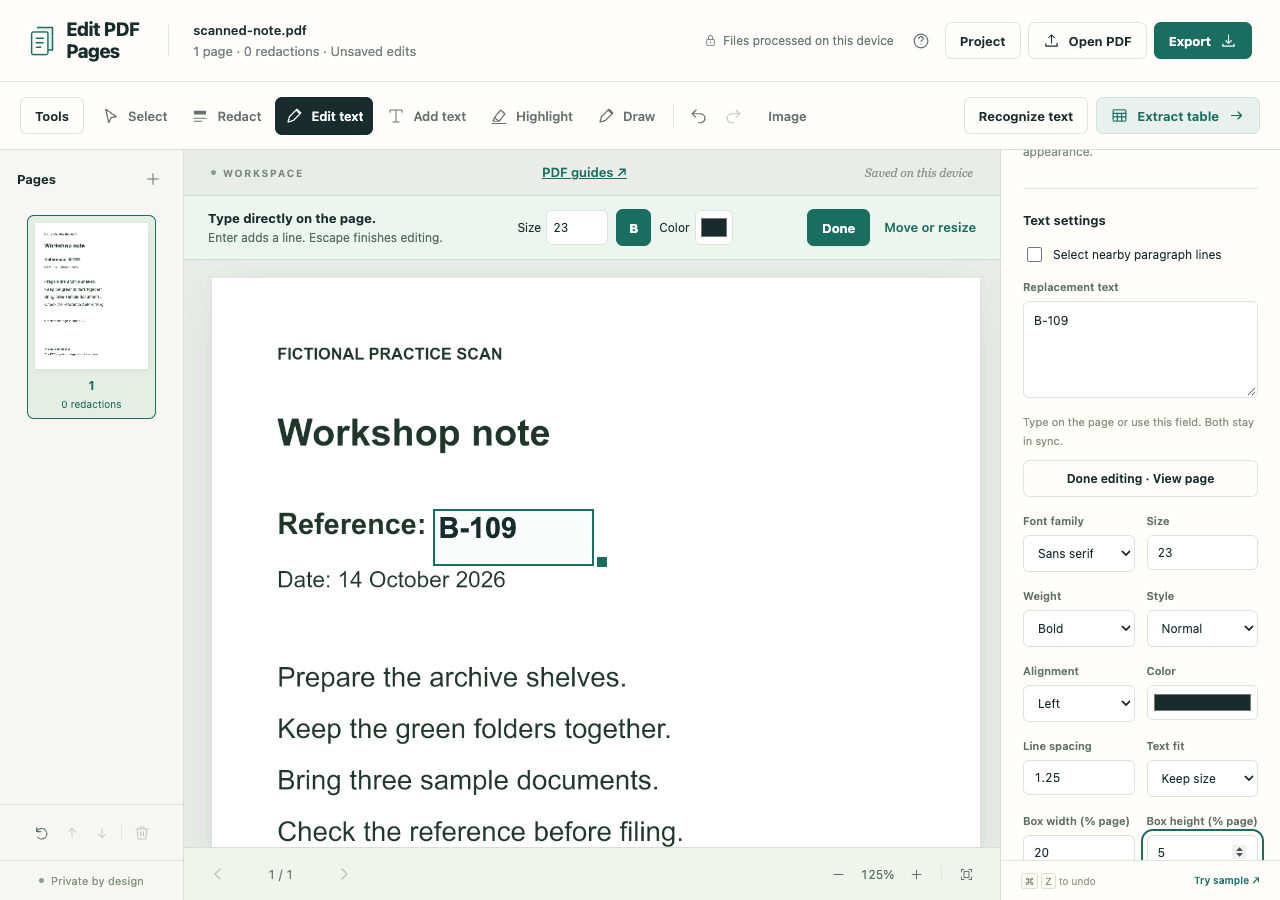
Choose Edit recognized text, then click the word or line. Type the correction and adjust the text box so it covers the old area and fits the page.
Review the image-only export
Create the sanitized PDF, reopen it and inspect the correction at a readable zoom. Keep the source separately if you need it later.
What to check before you share
- Only English OCR is included. Recognition can misread words or find no usable text on a poor scan.
- A replacement does not reflow the page or guarantee an exact font match.
- The required sanitized download has no searchable OCR layer. Use Make PDF searchable instead if you only need search.