Conversion
Convert PDF pages to JPG or PNG
Make an image of a PDF page or a set of pages. The export includes the appearance of your annotations and other supported edits.
or drop a PDF here
One PDF · up to 60 MB and 200 pages
Files stay on this device. No account required.
How to use this tool
Convert PDF pages to JPG or PNG in three steps
Choose the pages
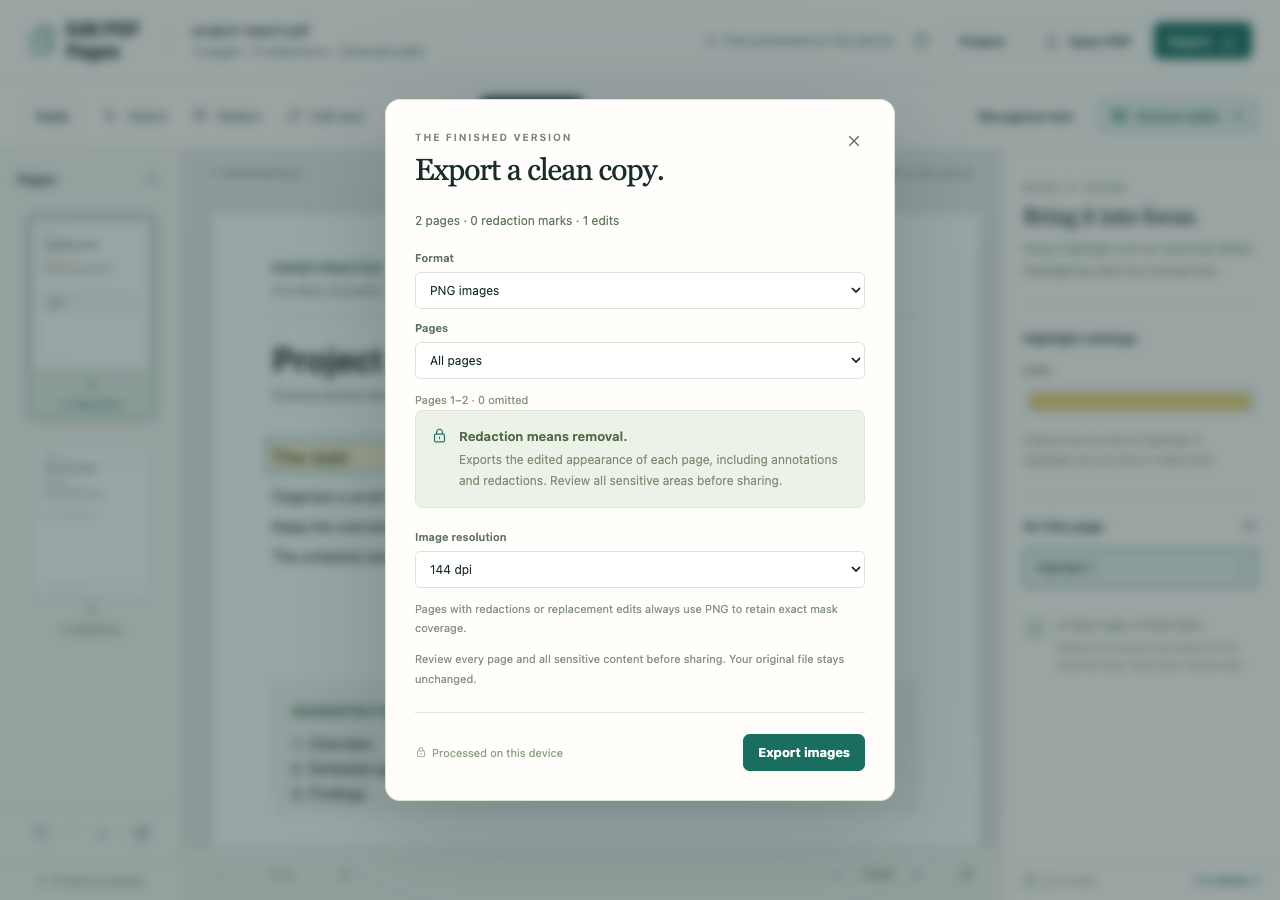
Open your PDF and choose all pages, the current page or a valid range in Export.
Set the image format
Select PNG or JPG and 72, 144 or 216 dpi. PNG at 144 dpi is the default; JPG uses 90% quality.
Download the images
One page downloads directly. Several pages arrive in a ZIP with numbered filenames; check the order and visible appearance.
What to check before you share
- Page images do not retain selectable text, links or form controls.
- Pages with redactions or replacement edits use PNG even when JPG is selected, preserving the exact mask pixels.
- Review every sensitive area before sharing. Large page ranges or resolutions can exceed the raster/output limits.
Raster exports are limited to 80 million pixels in total. Downloadable output is limited to 120 MiB.